Stream Deck Icon Converter
Summary
A Windows application that converts video files into “Elgato Stream Deck” icon files (animated GIFs).
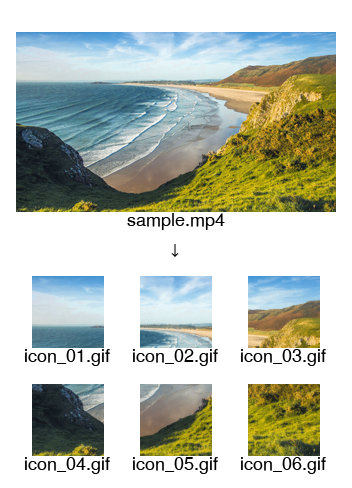
(Generates an icon image without the border area between buttons.)
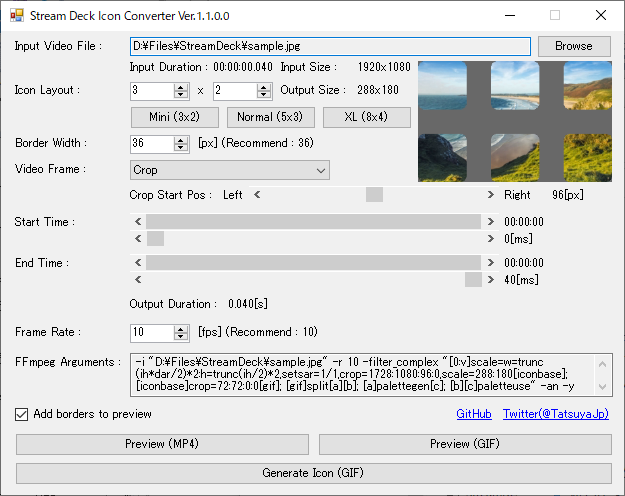
“FFmpeg” is required to run this application.
Download
How to use
- Prepare
- Download this application from “Letest release”.
- Extract the file from step 1.
- Download “FFmpeg”.
- If you already have “7-Zip” installed, download
ffmpeg-release-essentials.7z. - Otherwise, download
ffmpeg-release-essentials.zip.- Extract the file from step 3.
- Place
ffmpeg.exein the same folder asStreamDeckIconConverter.exe.
- Convert
- Launch
StreamDeckIconConverter.exe. - Click
Browsefor theInput Video File. - Open the video file.
- Change the
Icon Layout. - Change the
Start TimeandEnd Time. - Click
Generate Icon (GIF). - Choose a location to save the file.
- A sequentially numbered GIF file will be generated.
- Launch
- Set to “Stream Deck”
- Launch the
Stream Deckapplication. - Click “New Profile” to create a profile. (Example:
Profile 1). - Place any icons in all the locations. (Example:
Switch Profile). - Click on the top left icon among the placed icons.
- The icon you clicked will appear at the bottom of the window, click
v. - Click
Set from File. - Select
(FileName)_01.giffrom the sequentially numbered GIF files. - Set the GIF file for all the icons.
- To synchronize the animation, select a profile other than
Profile 1. - Select
Profile 1and check the display of the icons.
- Launch the
Author
TatsuyaJp (Twitter)
概要
動画ファイルを “Elgato Stream Deck” のアイコンファイル(アニメーションGIF)へ変換するWindowsアプリケーションです。
(ボタン間の境界領域を除いたアイコン画像を生成します。)
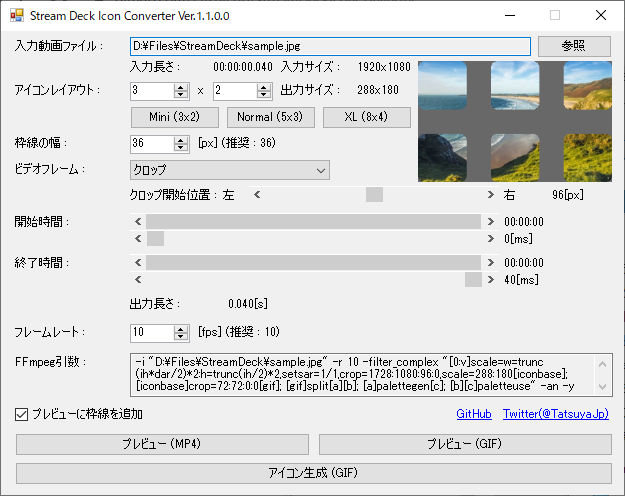
本アプリケーションの動作には “FFmpeg” が必要です。
ダウンロード
使用方法
- 準備
- “7-Zip” がインストール済みなら
ffmpeg-release-essentials.7zをダウンロードします。 - そうでなければ
ffmpeg-release-essentials.zipをダウンロードします。- 手順3.のファイルを展開します。
StreamDeckIconConverter.exeと同じフォルダへffmpeg.exeを置きます。
- “7-Zip” がインストール済みなら
- 変換
StreamDeckIconConverter.exeを起動します。入力動画ファイルの参照をクリックします。- 動画ファイルを開きます。
アイコンレイアウトを変更します。開始時間と終了時間を変更します。アイコン生成 (GIF)をクリックします。- ファイルの保存先を選びます。
- 連番のGIFファイルが生成されます。
- “Stream Deck” へ設定
Stream Deckアプリケーションを起動します。新規プロファイルをクリックしてプロファイルを作成します。 (例:Profile 1)- 全ての場所へ任意のアイコンを置きます。(例:
プロファイルを切り替え) - 置いたアイコンの中で、最も左上のアイコンをクリックします。
- ウィンドウの下側にクリックしたアイコンが表示されるので、
vをクリックします。 ファイルから設定をクリックします。- 連番のGIFファイルから
(ファイル名)_01.gifを選択します。 - 全てのアイコンについて、GIFファイルを設定します。
- アニメーションを同期させるため、
Profile 1以外のプロファイルを選択します。 Profile 1を選択して、アイコンの表示を確認します。
作者
TatsuyaJp (Twitter)